
Home
The Home page is the first screen you see after signing in to Hischool.
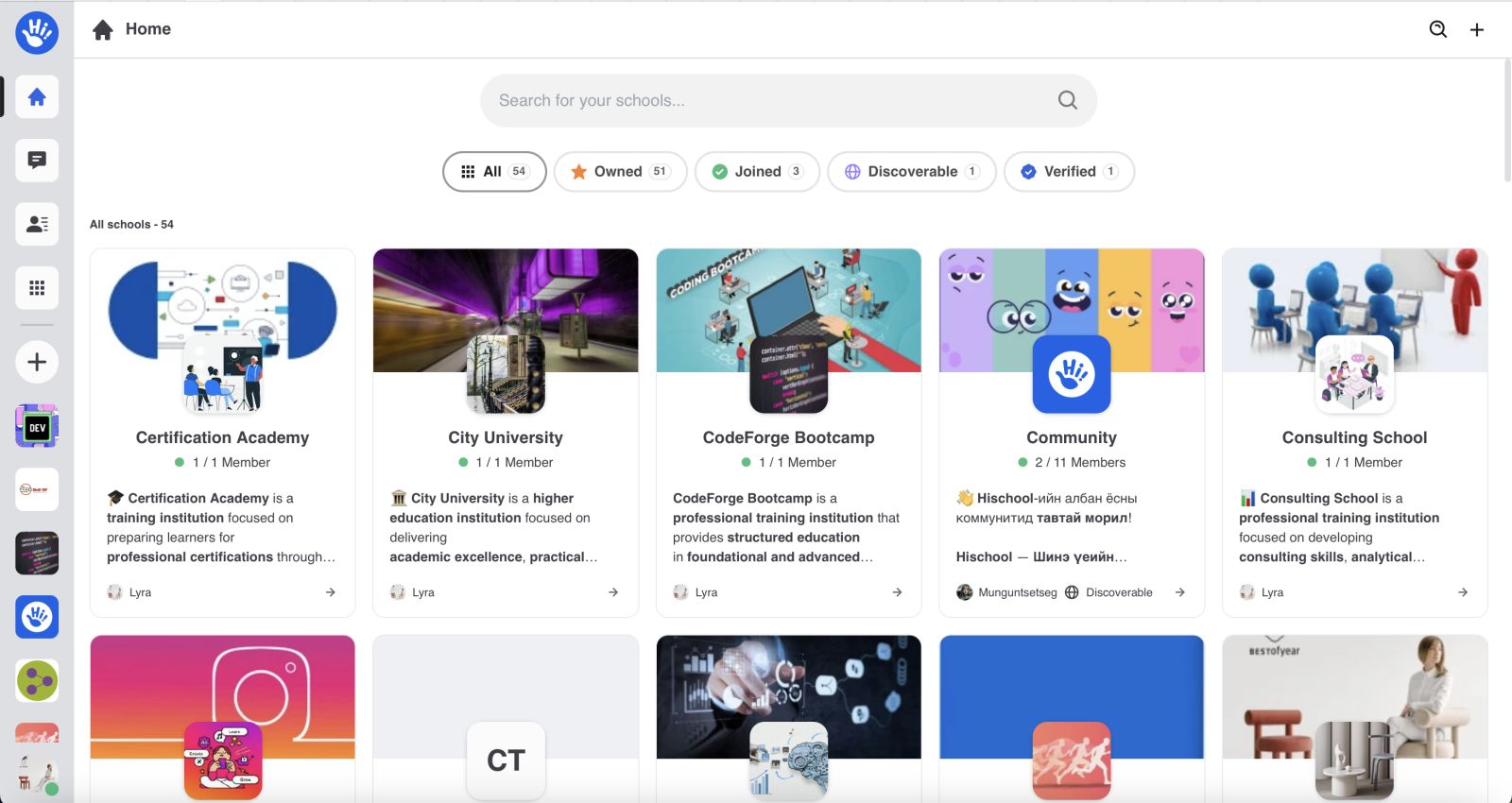
It provides a centralized overview of:
- Recent activity
- Unread conversations
- Schools you own or have joined
- Quick actions to create or join a school
Page Layout Overview
Section titled “Page Layout Overview”The Home page is structured into the following sections:
Header (Top Section)
Section titled “Header (Top Section)”On the left:
- Home icon
- Page title: Home
On the right:
- + button (Create a School / Join a School)
The header provides quick access to workspace expansion actions.
Quick Actions
Section titled “Quick Actions”+ Button
Section titled “+ Button”Clicking the + button opens a context menu with:
- Create a School
- Join a School
This allows you to create or join a school without navigating away from the Home page.
Unread Conversations
Section titled “Unread Conversations”If you have unread activity, the Unread Conversations section appears near the top of the page (below the header).
This section displays:
- Unread direct messages
- Unread group messages
How It Works
Section titled “How It Works”- Each unread conversation appears as a preview item.
- Clicking a conversation opens it inside the Messages section.
- Once a conversation is read, it is automatically removed from this section.
If there are no unread conversations, this section will not be displayed.
This keeps the interface clean and focused on relevant activity.
Schools Section
Section titled “Schools Section”Below the Unread Conversations area, your schools are displayed in a grid card layout.
Each card represents a school you are connected to (owned or joined).
Clicking a card opens that school.
If you are not part of any schools yet, you will see an empty state encouraging you to create or join one.
Search Schools
Section titled “Search Schools”At the top of the schools section, there is a search input field.
You can search schools by:
- School name
- School description
Search results update dynamically as you type.
School Filters
Section titled “School Filters”Below the search input, you will find filter tabs:
- All
- Unread
- Owned
- Joined
- Discoverable
- Verified
Filter Definitions
Section titled “Filter Definitions”All
Displays all schools connected to you.
Unread
Shows schools where you have unread activity.
Owned
Shows schools you created and own.
Joined
Shows schools you joined but did not create.
Discoverable
Shows schools that are publicly discoverable.
Verified
Shows officially verified schools.
Filters help you quickly organize and navigate between your schools.
Best Practices
Section titled “Best Practices”- Check the Unread Conversations section regularly.
- Use filters to quickly find specific schools.
- Use search when managing multiple schools.
- Keep school names clear and consistent.